|
If you administer Pro/ENGINEER and Pro/INTRALINK for
multiple users in multiple sites, automating certain tasks will
yield great benefits. For example, just think of the work involved
in doing these tasks manually:
- Installing Pro/ENGINEER and Pro/INTRALINK on a new computer.
- Getting 60 machines ready to upgrade Pro/ENGINEER or
Pro/INTRALINK.
- Tracking Pro/ENGINEER usage, or checking when a user last
logged into Pro/INTRALINK.
- Viewing a Pro/INTRALINK user's workspace, changing files, and
updating the local database.
Imagine instead that you can carry out such tasks from your
desktop with scripts that do most of the donkey-work. I managed to
automate all these tasks (and more) by learning some simple batch
commands and a little JavaScript. You can achieve these same results
using a programming language you already know. All you need is
plenty of imagination, some thought, and a little hard work.
This article offers some approaches I’ve taken to a few common
administration tasks, which hopefully will give you ideas for
developing your own. Note: The general principles discussed here
apply to any system, but the batch file examples apply specifically
to Windows.
For this task, you usually have to go to the new machine and
insert CDs to install the software. When you have new people
starting at remote locations, this will take up a lot more of your
valuable time. Alternatively, you can automate the process by
creating a series of shortcuts or setting up a web page on your
company intranet with some links.
- Trigger script to copy Pro/ENGINEER and Pro/INTRALINK files.
Have one or two computers in each location acting as “source”
machines. Get scripts to set up any new client with folders and
shares, then duplicate existing Pro/ENGINEER and Pro/INTRALINK
files. Use a batch file to copy:
| |
|
|
| |
@echo off
set PRO_DISK=c:
set
PRO_NET=\\network_drive\proe
%PRO_DISK%
cd\
md
ptc
net share ptc$=%PRO_DISK%\ptc /remark:"PTC Folder
Share" > nul
xcopy %PRO_NET%\scripts\*.*
%PRO_DISK%\ptc\scripts\ /s /d
xcopy
%PRO_NET%\ilink\proiclient3.0\*.*
%PRO_DISK%\ptc\ilink\proiclient3.0\ /s /d
xcopy
%PRO_NET%\proe2001\*.* %PRO_DISK%\ptc\proe2001\ /s
/d
|
|
| |
|
|
Notes: This batch file fragment will set a couple of locations
(local and network drives), then share \ptc. The folder is shared so
you can carry out administrative tasks, and the $ on “ptc$” hides
the share from prying eyes and network viruses. Next, all files are
copied for the scripts, Pro/INTRALINK and Pro/ENGINEER folders. Use
xcopy with the /s tag to copy subfolders, and /d to copy only files
with a newer date.
- Kick off automated setup.
Run Pro/INTRALINK setup with a “trail file,” using the –uilog and
–uitrail arguments to automate the procedure. This makes
installations a lot easier and eliminates the need for repetitive
clicks. (For more details, see the PTC Knowledge Database (customer
service account required): www.ptc.com/cs/tpi/103331.htm
or Pro/ENGINEER Help: www.geocities.com/proehelp/?admin.htm#setup.)
Copy a shortcut for your custom Pro/INTRALINK startup from the
server, complete with icon and “start-in” folder.
How much data do you have to copy for a typical Pro/ENGINEER
upgrade or build code change? Perhaps 400MB per client? How do you
ensure that all the clients have correct file versions before going
live? Are you going to travel round to 60 computers with a CD in
hand and install one or two at a time? Surely not.
By automating the upgrading process, you (1) save on travel time,
(2) ensure all machines get the same files and configuration, and
(3) limit the impact on normal work.
To copy the files:
- Get an up-to-date list of all computer names. (You already
have a user database, don’t you?)
- Batch copy files from a central source to all the clients.
- Put scripts in place that will copy any new files required and
create log files of updated machines.
| |
|
|
| |
@echo off
for /f %%x in
(update.txt) do call copy-files.bat %%x
:: Delete
update list and replace with list of machines not yet
done
del update.txt
ren old.txt update.txt |
|
| |
|
|
Notes: List the computer names in a text file “update.txt” (one
name per line). Use the “for /f” command to process the text file by
calling another script (copy-files.bat).
Here is an sample “copy-files.bat.”
| |
|
|
| |
:: Show m/c name
echo %1
::
Set drive locations
set PRO_NET=\\network_drive\proe
set
new_build=2003161
set client=\\%1\ptc$
:: If machine
is switched off, add name to the old list
if not exist
%client%\scripts goto off
:: Copy new build
files
xcopy %PRO_NET%\%new_build%\*.* %client%\%new_build%\
/s /d
:: If copy is incomplete, add name to the old
list
if not exist %client%\%new_build%\version goto
off
goto end
:off
echo Not accessible
::
Add computer name to the old list
echo %1>>
old.txt
:end |
|
| |
|
|
Knowing how different groups and locations are using the CAD
system makes it easier to justify maintenance and investment, as
well as to assess specific training needs. While you can get a
snapshot of current Pro/ENGINEER license usage with the “ptcstatus”
command, you need to record data over time to evaluate ongoing
trends.
PTC recently came out with a way to automate license data capture
and present it in a logical format. The PTCstat technique (available
at www.ptc.com/community/free_downloads.htm)
uses Perl script and Java applets to track license usage and display
it as line graphs. This tool helps you determine peaks and troughs
during the day.
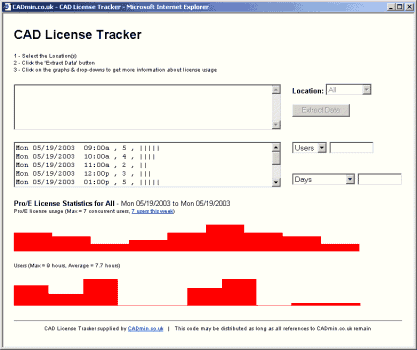
Alternatively, I developed a web-based CAD license tracker with a
“configurator” that helps you tailor the method to your own system.
It parses the ptcstatus data with JavaScript into a friendlier
format, producing bar charts of time and username vs. CAD usage.
(Details are available at CADmin.co.uk)
Has this ever happened to you? It’s 4 o’clock on a Friday
afternoon and you get a call from an engineer working at a remote
site. He’s having some trouble modifying Pro/INTRALINK attributes
for a bunch of parts that need to be checked in before he goes on
holiday for a couple of weeks. You try to talk him through the
steps, but things aren’t working as they should, and you’d really
like to work directly on the workspace data. What now?
Unless all your workstations have “remote-viewing” software (a
very handy tool), you need a way to get the local database file to
your machine, manipulate the data, and update the user’s file. A
script can take some inputs (computer name, username and workspace)
and then copy the appropriate files. Once you’ve replaced your local
database file with a file from the remote user, you can log in and
work directly with the Pro/INTRALINK data. If you copy across the
Pro/ENGINEER files to an appropriate folder, you can also work on
the parts and drawings. Remember to ask the remote user to log out
first, then update the files when you are finished, copying back any
new Pro/ENGINEER files.
This batch script fragment provides some code for remote
workspace viewing:
| |
|
|
| |
c:
set
local_ws=c:\ptc\workspace
set
local_proi=%local_ws%\%username%\.proi
cd
%local_proi%
if exist local.ddb-real call remote reset
/nopause
set mcname=%1
set usname=%2
set
wsname=%3
set
remote_ws=\\%mcname%\ptc$\work\%usname%
echo Backup
existing file and copy remote file
if exist local.ddb move
local.ddb local.ddb-real >nul
xcopy
%remote_ws%\.proi\local.ddb %local_proi%\ /d
echo Press
Ctrl+C to stop here, or to create workspace folder and copy
all files,
pause
cd %local_ws%
md
%usname%\.proi\%wsname%
cd
%usname%\.proi\%wsname%
xcopy
%remote_ws%\.proi\%wsname%\*.* /d |
|
| |
|
|
Notes: This remote viewer accepts inputs (mcname, usname, wsname)
and sets the location of the remote workspace. It then creates a
backup of your own database file before copying over the remote
database. You have the option to stop after the metadata is copied,
or to continue and copy all Pro/ENGINEER files associated with the
workspace. A configuration page for this remote workspace viewer
that allows you to set your specific disk locations, folders, etc.
is also available on CADmin.co.uk.
Once you start getting a few ideas, you’ll see how many
repetitive tasks can be automated. Learn some scripting commands and
start making your system run smarter. A word of caution: Don’t get
carried away with the automation to the extent that you lose sight
of the original process. Try to keep things as simple as possible
and document your developments, so others know what’s going on. 
Edwin Muirhead is the CAD systems administrator at
Weatherford in Aberdeen, UK. Find out more about the CAD license
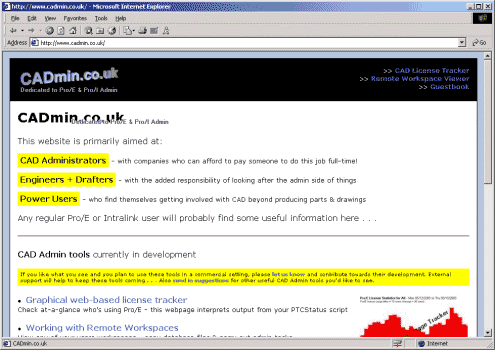
tracker, WS viewer, and other CAD admin tools at his new website, http://www.cadmin.co.uk/. |



