Where is my data, really?
As a user familiar with Pro/INTRALINK 3.x, it is common to be confused by some of the "new" terminology, or by existing terms that now seem to mean something different. I hope to clarify this by explaining how data travels between a Pro/ENGINEER session and a shared area on the server (Commonspace). This is based upon the excellent verbal descriptions and material from our Product Manager, Graham Birch.
I will break this down into two sections:
- Storage Locations
- Data Transfer Actions
Storage Locations
On the server side, data is organized into contexts known as Products and Libraries. Together these form roughly the equivalent of the Commonspace.
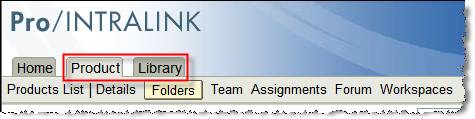
Figure 1 - Products & Libraries
Products enable data to be organized by your physical product lines for team definition, access control and collaborative development; information can also be logically organized within folders.
Libraries are used to warehouse business objects that are re-used across products, or that may be more general in nature. For example: drawing formats, template models, UDFs, design guides, etc.
On the client side, data is created and stored in Workspaces. These virtual briefcases enable users to organize their work-in-progress without forfeiting control and communication with other team members. In contrast to Pro/INTRALINK 3.x, the "real" workspace is actually located on the server as a personal cabinet. There is also a local content cache, which is a temporary storage area. This enables the fastest local save/retrieve operations, and can synchronize data in the background through upload/download actions. This offers several advantages, like "roaming" workspaces and reduced risk of data loss since administrators include servers in backup and DR plans. Of course, users must still be disciplined to perform uploads.
The location of the client cache can be controlled by setting the environment variable PTC_WF_CACHE (this should point to a local hard drive folder!). By default, this is located under the PTC_WF_ROOT folder, which includes other Pro/E Wildfire settings. On Windows, this is found under: "%USERPROFILE%\Application Data\PTC\ProENGINEER\Wildfire\.wf". You can also manage certain aspects about the cache from within Pro/E using the Tools > Server Registry > Cache tab.
Data Transfer Actions
This visual map shows the storage locations horizontally, and the actions vertically on the left.
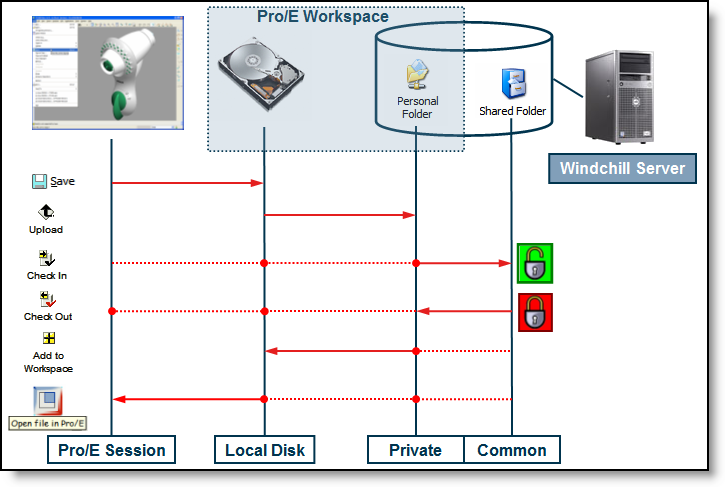
Figure 2 - Data Storage / Flow
Red dotted lines are auto-operations resulting from a single shortcut Pro/E action.
The Shared Folder will be the Product or Library context that was specified when the Workspace was created. With proper access rights, it is possible to move all versions of an item to another product or library later if desired. Note that the Cut and Paste actions only move a single version.
There is a very subtle, but important, difference between viewing a Workspace from a standalone browser versus the one embedded in Pro/E Wildfire:
- Standalone - ONLY "sees" content in the Private area on the server
- Embedded - UNION of content in Local Disk Cache & Private Folder on server
Keep in mind that only Pro/ENGINEER file types are managed in the Workspace. Other document types remain in the native OS file system, and are checked in when they need to be shared.
The object actions can be selected in multiple places - either in the HTML UI, or seamlessly as part of the Pro/E design experience. We have tried to use consistent icons and commands in:
- Pro/E Wildfire pull-down menus & Model Tree context menus (see figures)
- Pro/INTRALINK menus, icons, drop-down lists
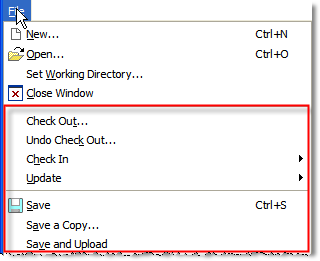
Figure 3 - Pro/E Wildfire File Menu
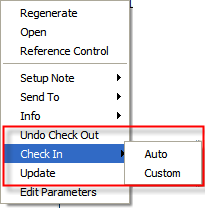
Figure 4 - Pro/E Model Tree Context Menu
Here is a comparison between frequently used commands:
| Pro/INTRALINK 3.x | Pro/INTRALINK 8.0 |
| Check out | Add to Workspace or Download is the equivalent operation that copies content and metadata without restricting others access or ability to make changes. |
| Check in | Save & Upload + Check In are the equivalent of iterating modified objects. From within Pro/E, the single operation Check In > Auto is also available. |
| Lock | Locking an object is an automatic part of the check-out operation. To clear the lock, use the Undo Checkout action. |
| Intent to Modify | Protect the object from modification by another user by checking it out. An object can only be checked-out to one user or workspace. |
| Read Only | By default, objects are not editable unless checked out. |
| Delete (WS object) | Use the Workspace action Remove to delete an object. |
| Update | This command remains the same, and is used to replace objects In Session or in the Workspace with the latest. |
I strongly recommend reviewing the document "Getting Started with Pro/INTRALINK 8.0." If you have the system up and running, this PDF can be found under the Publications link. If not, you can find it online here. This describes core concepts, and will direct the reader to more detailed documentation. The appendices tabulate a more thorough list of terminology differences. Finally, it concludes with a nice glossary.
Next time, I will review Naming and Versioning.
Until then, ponder this quote from Albert Einstein:
"Everything should be made as simple as possible, but not simpler."
What would you like to learn more about? Please drop me a line at 'tmcnaney' at 'ptc.com', or share your ideas with the community in the Site Suggestions & Ideas forum.